
Self Service Password Reset for MS Windows Accounts.
Significantly reduce the number of calls to the Help Desk by giving users the ability to reset their own forgotten passwords.
User's enrole to the service by defining security questions and answers which are subsequently used to authenticate a user before allowing them to reset their own password.
Try It Today!
See how Sysgem's Self Service Password Reset product can benefit you and save help desk effort, with a free fully-functional 30-day trial:
Sysgem Self-Service Password Reset solves the problem of end-users forgetting their Windows login passwords and having to ask the helpdesk or the system administrator to reset it. With Sysgem Self-Service Password Reset users can reset their own passwords after correctly replying to security questions with answers that they have previously defined themselves.
There are three components of Sysgem Self-Service Password Reset that are to be installed. The central service should typically reside on the domain controller; the web enrolment system can be installed on any IIS server in the domain; and the workstation component should be installed on all end-user workstations to allow users to reset their password on demand.
The Domain Controller runs a Windows Service which carries out the operation of resetting passwords for end-users.It also holds a database of Questions and Answers, which are created by the end-users themselves, and subsequently used to verify the authenticity of the person wishing to reset their own password.
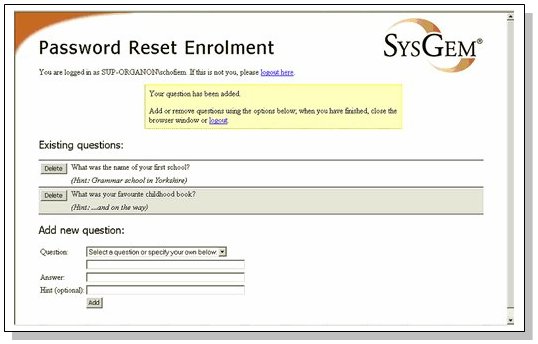
The web enrolment system provides a web interface to the questions and answers database held on the domain controller, allowing users to log in at any time and modify their security questions.
The workstation component installs two additional buttons on the normal Windows logon screen.
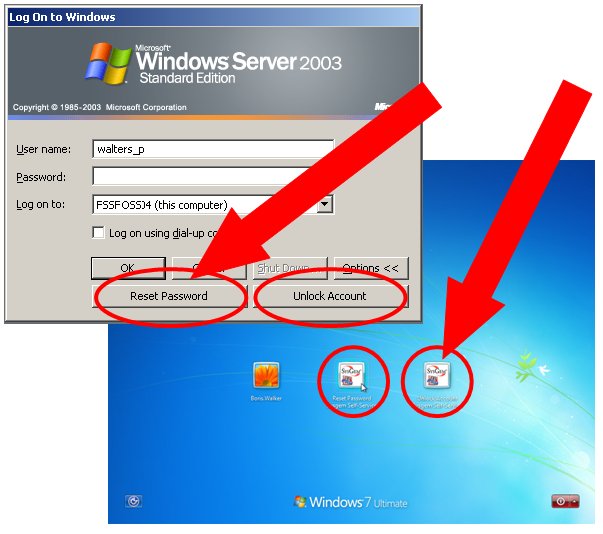
If a user forgets his password then selecting the "Reset Password" button on a workstation where Sysgem Self-Service Password Reset has been installed will allow him to change his own password after he has correctly answered his prepared questions. If the account is locked because he has tried repeatedly, too many times, to log in with an incorrect password, then he can unlock his account by using the "Unlock Account" button and again replying to the security questions.
Find answers to common support questions in our Knowledge Base.
If you require support with an issue not listed here, or have any other enquiries, please contact us.
© Sysgem AG, all rights reserved.
Sysgem is a trademark of Sysgem AG. Other brands and products are registered trademarks of their respective holders.
Sysgem AG, Forsterstrasse 67, CH-8044 Zurich, Switzerland
+41 44 586 1060